Open your blog dashboard
Choose My Blog Dashboard → Create Post to open Create New Post.
Build the post
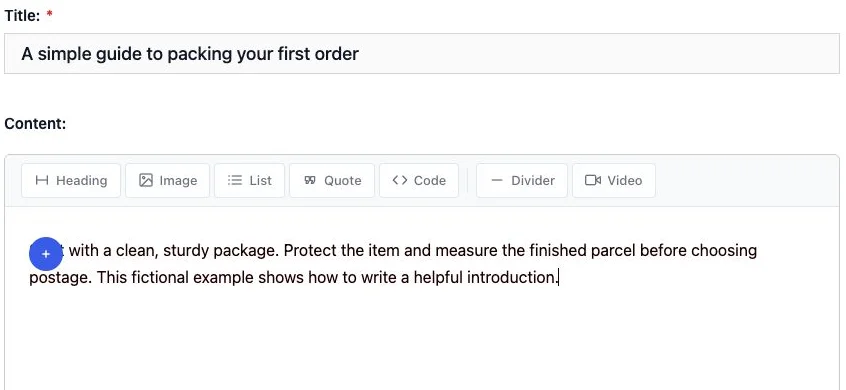
Enter a specific Title and write in Content. The toolbar provides Heading, Image, List, Quote, Code, Divider, and Video blocks.
Select a Category and add relevant Tags. Under Featured Image, upload an image you are allowed to publish. The editor recommends 1200 × 630 pixels and accepts JPG/JPEG, PNG, GIF, or WEBP up to 20 MB.
Preview first
Use Preview before publishing, then check headings, links, images, spelling, and phone-width readability. During our local check, selecting Preview saved a draft; it did not publish the article. If no preview opens, check whether your browser blocked a new tab.

Publish or return later
Choose Save Draft for unfinished work and return through the Drafts tab in My Blog Dashboard. Open Publishing Options to review visibility and whether new comments are allowed. Choose Publish only when the article is ready for readers.
Captured on the local website on September 16, 2026, with fictional article text. No article was published. The complete preview rendering and live-site/mobile layouts have not been verified in this capture pass.