Open Koopo Shipping
In Seller Dashboard, choose Koopo Shipping. This is the primary setup path for Koopo-managed shipping.
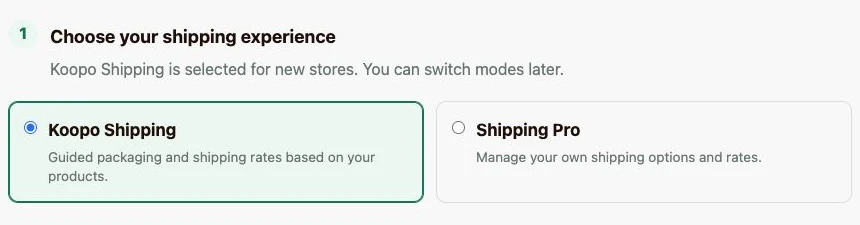
Choose Koopo Shipping for guided packaging and rates, or Shipping Pro if you manage your own shipping options.
Confirm where orders ship from
Review the store address shown under Confirm where orders ship from. Use Edit store address if it needs correcting, then confirm Use this address for Koopo Shipping. This should be where you hand packages to the carrier.
Choose familiar packaging
Choose an optional Typical package, such as Small box or Single T-shirt or light clothing poly mailer. Each product still needs its actual packaging and weight.
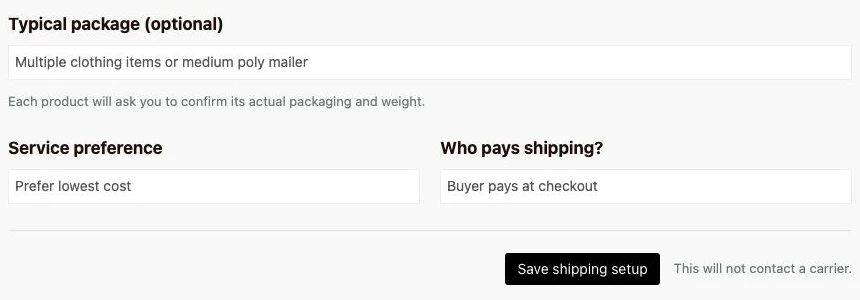
Choose your Service preference, then decide Who pays shipping? The shown example uses Buyer pays at checkout. Review your choices before selecting Save shipping setup.
Watch an example
Silent, slowed screen-capture walkthrough from the local website. It demonstrates selecting Small box, Prefer faster delivery, and Seller includes shipping. These are example choices; the recording does not save them.
Add product weight
Enter a known scale or supplier weight when available. Koopo can guide estimates for supported apparel, but an estimate is not the same as a measured packed parcel. Packaging weight is handled separately.
Screenshots captured September 16, 2026. Account details and the shipping address are excluded.
Test checkout separately
A saved profile does not prove that a live carrier quote, label purchase, tracking update, seller deduction, or refund will succeed. Test the complete workflow in the intended environment before accepting orders.